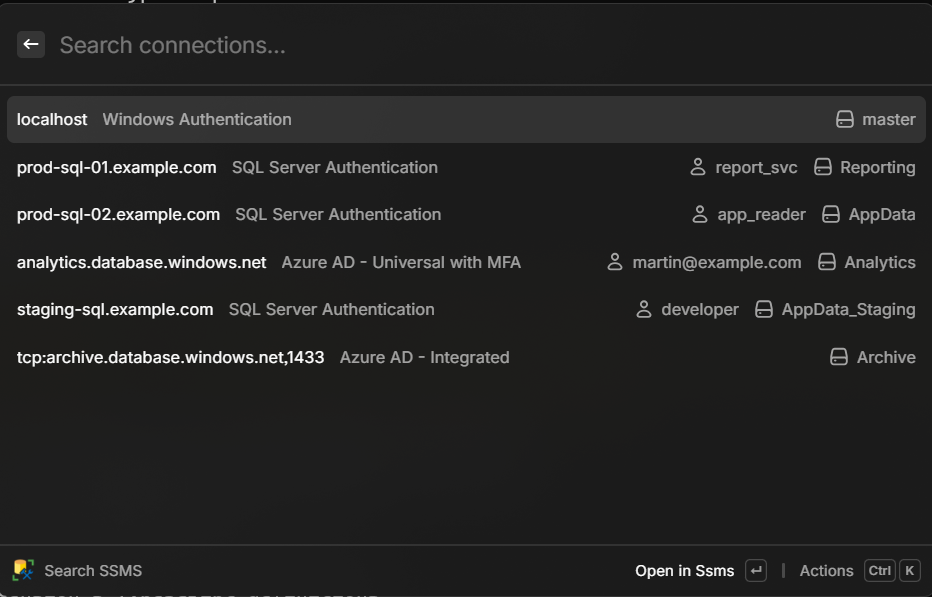
SSMS for Raycast
I live in SSMS at work, and the built-in Connect dialog never felt fast enough. So I built this Raycast extension that reads my saved connections from SSMS's UserSettings.xml and lets me search and launch them from Raycast. Connections are sorted most-recently-used first — matching how I actually think about them — and selecting one launches SSMS with the server, database, and login pre-filled. The extension auto-detects SSMS 18, 19, and 20 from the default install location, and you can override the path in preferences if needed.
A small Raycast extension that reads saved SQL Server Management Studio connections and lets you search and open them directly.
Features
- Search & filter connections by server, username, or database
- Most-recently-used first — connections sorted by SSMS’s own last-used timestamp
- Open in SSMS — launches with the right server, database, and login pre-filled
- Copy server name or username to the clipboard
- Shows the authentication method and database for each connection
- Auto-detects SSMS 18/19/20 from the default install location, with a preference to override
How It Works
Connections are read from SSMS’s settings file:
%APPDATA%\Microsoft\SQL Server Management Studio\<version>\UserSettings.xmlEach entry is parsed for server, authentication method, username, database, and last-used timestamp. Selecting one runs Ssms.exe -S <server> [-d <database>] [-U <user>].
The path to Ssms.exe is auto-detected from Program Files, but can also be set manually in the extension’s preferences.